> For the complete documentation index, see [llms.txt](https://docs.upriverdata.com/llms.txt). Markdown versions of documentation pages are available by appending `.md` to page URLs; this page is available as [Markdown](https://docs.upriverdata.com/integrations/microsoft-teams.md).

# Microsoft Teams

Upriver connects to Microsoft Teams to work where your data conversations already happen. Once connected, Upriver:

* **Monitors your alert channels** — every alert that lands in a channel you activate (posted by people, or by tools like Monte Carlo, Airflow, or Grafana through webhooks, workflows, and connectors) is investigated against your actual data, and Upriver replies in the alert's thread with a triage verdict: a priority (Critical / High / Medium / Low / False alarm) and the reasoning behind it.
* **Answers questions** — mention **@Upriver** in any active channel and it answers in the thread, using live access to your data stack.
* **Notifies you about data incidents** — incident notifications go to a channel you choose.
* **Delivers routine results** — any Upriver routine (for example, a daily alert summary) can post its results to a Teams channel when it completes.

## Who does what, and when

Connecting is a short, one-time sequence with three roles involved:

| Step                                         | Who                                        | Where                             | How often                                  |
| -------------------------------------------- | ------------------------------------------ | --------------------------------- | ------------------------------------------ |
| 1. Connect the organization                  | A **Microsoft Entra Global Administrator** | Upriver → Settings → Integrations | Once per organization                      |
| 2. Add Upriver to a team                     | A **team owner**                           | Microsoft Teams                   | Once per team                              |
| 3. Add Upriver to private or shared channels | A **channel owner**                        | Microsoft Teams                   | Once per private/shared channel (optional) |
| 4. Choose active channels                    | Any Upriver user                           | Upriver → Settings → Integrations | Anytime                                    |

There is nothing to download and no app package to upload — connecting publishes the Upriver app directly into your organization's own Teams app catalog.

## Prerequisites

* **Your organization must allow custom Teams apps.** A Teams Administrator can verify this in the [Teams admin center](https://admin.teams.microsoft.com) under **Teams apps → Manage apps → Org-wide app settings**: "Custom apps" (apps built for your org) must be allowed. Most organizations have this on by default.
* **Step 1 requires a Global Administrator** (or Privileged Role Administrator). The connection grants organization-level Microsoft Graph permissions, which only these roles can consent to. A Teams Administrator alone cannot complete this step.

## Step 1 — Connect your Microsoft organization

Done once, by a Global Administrator, and takes about a minute.

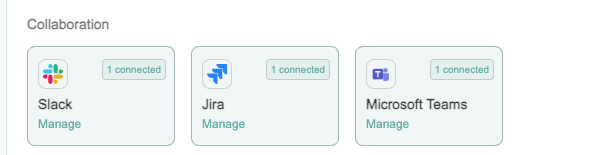
1. In Upriver, go to **Settings → Integrations**, find **Microsoft Teams** in the Collaboration section, and click **Connect**.
2. You are redirected to Microsoft. Sign in (if needed) and review the consent screen — it lists exactly the permissions in the [permissions reference](#permissions-reference) below.
3. Click **Accept**.
4. You are returned to Upriver with the integration marked connected.

<figure><img src="https://875415170-files.gitbook.io/~/files/v0/b/gitbook-x-prod.appspot.com/o/spaces%2FLE0zsJmUpeLjYw085cnO%2Fuploads%2Fgit-blob-4d94f2277572ff09aa6d226ae4c6c2920d7bfabe%2Fteams-integrations-card.png?alt=media" alt=""><figcaption><p>The Microsoft Teams card in Settings → Integrations (shown here already connected).</p></figcaption></figure>

Behind the scenes, two things happened:

* Your Microsoft organization is now linked to your Upriver account.
* The **Upriver app was published into your organization's Teams app catalog**. Everyone in your org can now find it in Teams under **Apps → Built for your org** — no files, no manual uploads, and the app is visible only inside your organization.

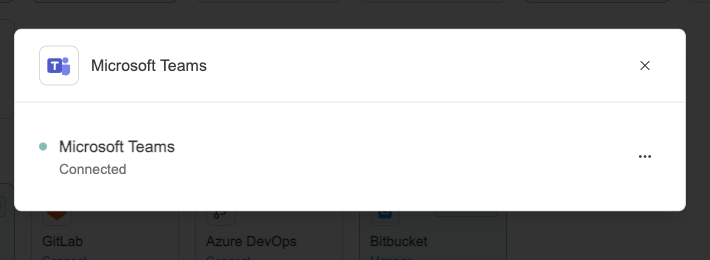
<figure><img src="https://875415170-files.gitbook.io/~/files/v0/b/gitbook-x-prod.appspot.com/o/spaces%2FLE0zsJmUpeLjYw085cnO%2Fuploads%2Fgit-blob-991871338c76fdf161bdcb00b832b86525bf5296%2Fteams-connected-dialog.png?alt=media" alt=""><figcaption><p>The integration after a successful connection.</p></figcaption></figure>

{% hint style="info" %}
If the Upriver app doesn't appear under "Built for your org" right away, give it a few minutes and fully quit and reopen the Teams client — Teams caches the app catalog.
{% endhint %}

## Step 2 — Add Upriver to a team

Done by a **team owner**, for each team whose channels you want Upriver in.

1. In Microsoft Teams, go to **Apps → Built for your org** and select **Upriver**.
2. Click the arrow next to **Add** and choose **Add to a team**.
3. Pick the team and confirm. Teams shows a consent screen for the app's team-scoped permissions (the "RSC" permissions in the reference below) — these apply only to that team.

Upriver posts a short welcome message, and all of the team's standard channels appear in Upriver's channel settings automatically.

{% hint style="warning" %}
The plain **Add** button installs Upriver only for you personally, which does nothing useful here — use **Add to a team**.
{% endhint %}

## Step 3 — Private and shared channels (optional)

Private and shared channels are supported, with one Microsoft-imposed extra step: **adding Upriver to the team is not enough**. Microsoft only lets an app read a private or shared channel if the app has been added to **that specific channel**.

For each private or shared channel you want monitored:

1. Open the channel in Teams.
2. Click **⋯ (More options) → Manage channel → Apps → Add an app**.
3. Select **Upriver**.

Upriver greets the channel, and it appears in Upriver's channel settings labeled *Private* or *Shared*. From that point it behaves exactly like a standard channel.

{% hint style="warning" %}
A private or shared channel that was switched on in Upriver but never had the app added this way will stay silent — Microsoft blocks Upriver from reading it. This is the most common reason a channel produces no verdicts.
{% endhint %}

## Step 4 — Choose where Upriver is active

Done in Upriver by any user, and changeable at any time.

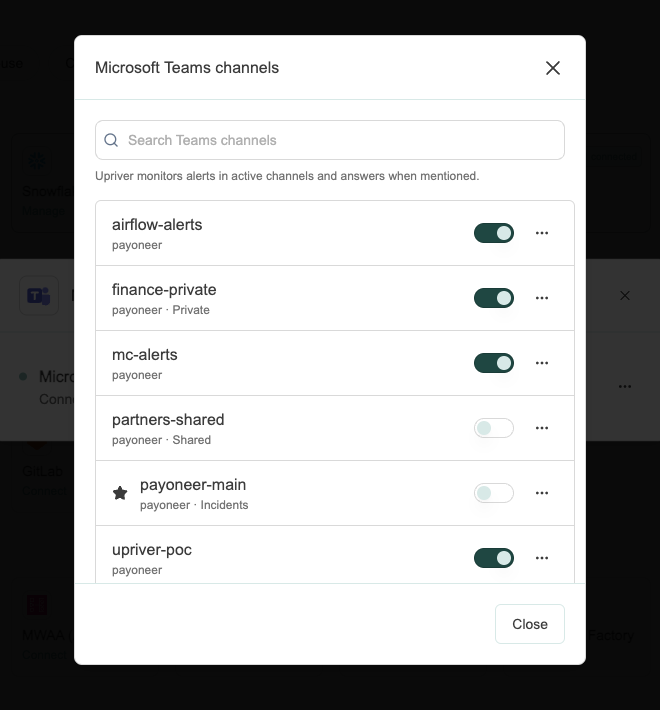
1. Go to **Settings → Integrations → Microsoft Teams → Manage channels**.
2. Flip **Active** on for each channel Upriver should work in. Active means both things at once: Upriver monitors the channel's alerts *and* answers when mentioned there.
3. To choose where data-incident notifications go, open a channel's **⋯** menu and select **Send incidents here**. One channel per account holds this role (marked with a star); it does not need to be Active.

<figure><img src="https://875415170-files.gitbook.io/~/files/v0/b/gitbook-x-prod.appspot.com/o/spaces%2FLE0zsJmUpeLjYw085cnO%2Fuploads%2Fgit-blob-fef8f5c1cba555095c2c82969538cf9f49a2834f%2Fteams-channels-dialog.png?alt=media" alt=""><figcaption><p>The channel list: one Active switch per channel, type labels for private and shared channels, and a star on the incidents channel.</p></figcaption></figure>

## What to expect once it's live

* **Alerts**: when a new alert lands in an active channel, Upriver investigates and replies in the alert's own thread, typically within a few minutes. The verdict includes the priority and the reasoning — what was checked, what's actually affected, and whether it needs attention now.
* **Questions**: mention **@Upriver** with a question in an active channel. Upriver acknowledges in the thread, works the question against your live data, and replies there. Questions addressed to Upriver are never treated as alerts.
* **Incidents**: data-incident notifications arrive as cards in your chosen incidents channel. Critical alert verdicts are escalated there as well.
* **Routines**: a routine configured with a Teams notification posts a completion card — including the routine's summary — to its channel when it finishes.

## Permissions reference

Upriver follows the principle of least privilege: organization-wide permissions are limited to discovery and app management, and everything message-related is scoped per team, granted only when a team owner adds the app.

### Organization-wide (granted once, at Connect, by the Global Administrator)

| Permission                                                | Why Upriver needs it                                                                                                                                                  |
| --------------------------------------------------------- | --------------------------------------------------------------------------------------------------------------------------------------------------------------------- |
| `Organization.Read.All`                                   | Read your organization's name, to label the connection in Upriver.                                                                                                    |
| `User.ReadBasic.All`                                      | Resolve display names of people who post or are mentioned.                                                                                                            |
| `AppCatalog.Read.All`                                     | Check whether the Upriver app is already published in your catalog, so connecting is safely repeatable.                                                               |
| `TeamsAppInstallation.ReadWriteAndConsentSelfForTeam.All` | Manage the Upriver app's own installation state in teams.                                                                                                             |
| `AppCatalog.ReadWrite.All` *(delegated, one-time)*        | Publish the Upriver app into your org's catalog during Connect. This one rides the connecting administrator's own sign-in, is used exactly once, and is never stored. |

### Per team (granted by the team owner when adding the app)

These are Microsoft's resource-specific consent (RSC) permissions — they apply only to the team the app is added to, never organization-wide.

| Permission                   | Why Upriver needs it                                                                                                                                     |
| ---------------------------- | -------------------------------------------------------------------------------------------------------------------------------------------------------- |
| `ChannelMessage.Read.Group`  | Read channel messages — this is how alerts posted by tools and workflows are picked up.                                                                  |
| `ChannelMessage.Send.Group`  | Post verdicts, answers, and notifications.                                                                                                               |
| `Member.Read.Group`          | Know the team's channels and members for routing.                                                                                                        |
| `TeamSettings.Read.Group`    | Read basic team settings.                                                                                                                                |
| `ChannelSettings.Read.Group` | Read channel names and types, so channels show their real names in Upriver — including renamed ones — and private/shared channels are labeled correctly. |

## Data handling

* Upriver reads messages only from channels you have made **Active** (plus private/shared channels only after the app is explicitly added to them).
* Message content is used to investigate and triage alerts and to answer questions; alert messages and their verdicts are stored in your Upriver account so routines and summaries can reference them.
* Upriver's own messages, and questions addressed to Upriver, are never treated as alerts.
* Upriver posts only into channels it was added to: verdicts and answers as thread replies, notifications to the channels you chose.
* The app requests no chat (direct message) data access.

## Removing Upriver

* **From one channel or team**: remove the app in Teams (team → Manage team → Apps, or channel → Manage channel → Apps). Upriver's access ends immediately and the channels disappear from Upriver's settings. Nothing else in your Teams is touched.
* **Entirely**: in Upriver, go to **Settings → Integrations → Microsoft Teams** and disconnect. This severs the organization link and deregisters all channels. A Teams Administrator can additionally delete the Upriver app from your catalog in the Teams admin center.

## Troubleshooting

| Symptom                                                   | Cause and fix                                                                                                                                                                                            |
| --------------------------------------------------------- | -------------------------------------------------------------------------------------------------------------------------------------------------------------------------------------------------------- |
| Consent screen says "approval required" instead of Accept | The person connecting is not a Global Administrator. Have a Global Admin run Step 1.                                                                                                                     |
| Upriver app missing from "Built for your org"             | Teams client cache — wait a few minutes and fully quit and reopen Teams. If it is still missing, your org may block custom apps: check Org-wide app settings in the Teams admin center, then contact us. |
| A channel is Active but never gets verdicts               | If it's a private or shared channel, the app must be added to the channel itself (Step 3). Team-level installation is not enough — this is a Microsoft requirement.                                      |
| An alert got no verdict                                   | Verdicts reply to new top-level messages in active channels. Replies inside existing threads and questions mentioning @Upriver are deliberately not triaged.                                             |
| Wrong channel names in Upriver                            | Names sync when the app is added. If a channel was renamed since, remove the app from the team and re-add it.                                                                                            |

Questions or a setup that doesn't match this flow? Contact us — we're happy to walk your admins through it live.