Cloud Composer
Connecting Cloud Composer (Google's managed Apache Airflow) gives the Upriver agent read-only visibility into your orchestration: DAGs, run history, task logs, and import errors. During an incident the agent can tell you which DAG failed, on which task and retry, and quote the actual error from the log — without anyone opening the Airflow UI.
How access works, in one paragraph: the setup creates a dedicated service account in your GCP project, owned by you. Upriver never receives a key for it — there is no key upload anywhere in the product. Instead, Upriver's platform service account is granted roles/iam.serviceAccountTokenCreator on that one account and impersonates it with short-lived tokens. Two independent layers then keep it read-only: on the GCP side the only Composer role it is granted is roles/composer.user, and on the Airflow side you register it with the Viewer role, so even a hypothetical bug on Upriver's side could not trigger, pause, or modify a DAG — your Airflow refuses at the door. (If you connect BigQuery in the same run, the account also holds the read-only BigQuery roles listed in BigQuery Permissions, and nothing else.)
Supported: Composer 2 and Composer 3, Airflow 2.x and 3.x (the connector detects the API version automatically).
Before you start
Terraform and the gcloud CLI available to whoever runs the setup, authenticated to Google Cloud (
gcloud auth application-default login, or a CI identity). The Terraform file carries no credentials — it uses whatever Google credentials the machine running it has.Network access to
registry.terraform.iofrom that machine:terraform initpulls the publicterraform-google-modules/service-accountsmodule.The person running the Terraform needs, on the target project(s): permission to manage IAM policy and to create service accounts.
Whoever runs the Airflow user-creation command in the last step needs permission to run
gcloud composer environments runagainst the environment.Check the Domain restricted sharing org policy. If your organization enforces
iam.allowedPolicyMemberDomains, it will block the one grant that makes Upriver's platform service account able to impersonate the new account, because that identity is outside your domain. Confirm this before you run the Terraform — otherwiseapplyfails on the last resource.
Already ran the Upriver Terraform for this project? Do not skip it. A BigQuery-only run grants no roles/composer.user, and a Composer-only run grants no BigQuery roles — so pointing Upriver at an existing service account without re-running leaves the new service with no permissions at all.
Instead, go through the setup again for the service you are adding (ticking the "also connect" box if you want both), and run the newly generated file in the same directory as the original run. Terraform then reuses its state, keeps the same service account, and the plan contains only the roles that were missing. Running it in a fresh directory instead fails: the service account name is fixed, so Terraform tries to create one that already exists.
The setup, end to end
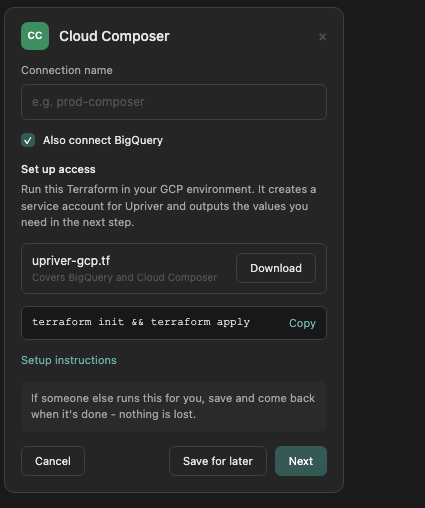
In Upriver, go to Settings → Integrations → Add integration → Cloud Composer. The wizard walks through Basic Settings (a name for the integration and its type), then Connect, Terraform, Finalize and Airflow access. Nothing is applied in your cloud until you run the Terraform yourself, and the integration is not created until you press Create on the last step.

Step 1: Connect — answer the setup questions
Everything the Terraform needs is answered here, so the file you download next is complete:
Also connect BigQuery in the same run
Tick it to cover both GCP integrations with one Terraform run — one change for your security team to review instead of two.
Project for the service account (required)
The GCP project the read-only service account is created in. It does not have to be the project that hosts Composer.
Cloud Composer projects (required, repeatable)
Every project running a Composer environment. Only these projects receive the Composer role.
BigQuery projects (required when BigQuery is in the run, repeatable)
Every project whose BigQuery data Upriver may read. Only these projects receive the BigQuery roles.
If you ticked BigQuery, the step also asks Which BigQuery data may Upriver read?, with the datasets and tables to scope reads to — see the BigQuery guide for what that choice grants.

Step 2: Terraform — download and apply
This step opens with a What it will set up summary — the service account project, the projects Upriver reads from, and the Composer access it grants — so you can check the answers before anything is generated.
Download
upriver-gcp.tf— a single, self-contained Terraform file. It is fully pre-filled from your answers: the projects, and the Upriver platform identity it needs to trust, are already in it. There is nothing to edit.Place it in an empty directory and run:
There is nothing to type at the prompt either — every variable has a value, so
applygoes straight to the plan. (If you want the plan without any interaction at all, for a pipeline or a reviewer,terraform plan -input=falseruns clean.)Terraform prints the full plan and waits for your confirmation — the review step for your security team. Nothing changes until you type
yes. The plan only ever adds read-only IAM members: it creates the service account and adds it as a member to project and service-account IAM policies (and, if you included BigQuery with a scoped choice, to the listed datasets' and tables' policies). Those additions modify the target policy additively — nothing existing is removed or overwritten, and no other kind of resource is created, changed or destroyed.When the run finishes, Terraform prints the values Upriver needs. Copy two of them:
emailandunique_id. You need both in the steps below.
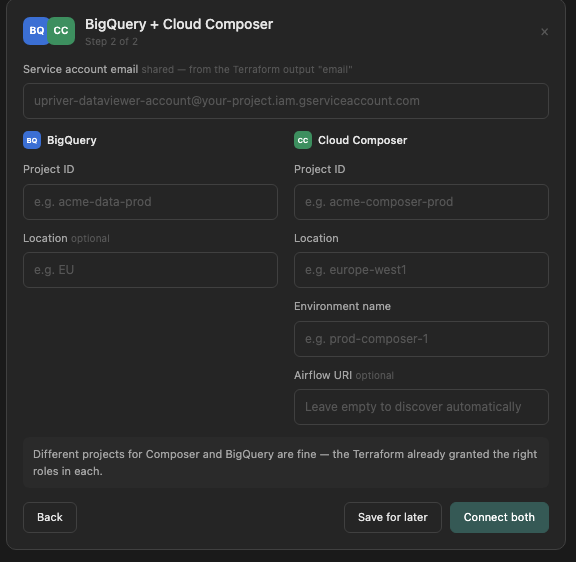
Step 3: Finalize — enter the environment coordinates

Project ID
The project hosting the Composer environment
Location
The environment's region, e.g. europe-west1
Environment name
The Composer environment name, exactly as it appears in Cloud Composer
Service account email
The email output of the Terraform run
Service account unique ID
The unique_id output of the Terraform run — the next step builds the Airflow registration command from it
Airflow URI (optional)
Leave empty and Upriver looks it up. Fill it in to skip that lookup — see below
Unlike BigQuery's optional Location, Composer's Location is required: project, location and environment name together are what identify an environment, and there is no way to find one without its region. gcloud composer environments list --locations <region> shows the exact values.
If you selected BigQuery as well, this step shows both integrations side by side, sharing one service account email at the top, with the unique ID field right below it — filling each once covers both. Upriver then creates two integrations: this one, and a second one named <your integration name>-bigquery.

Step 4: Airflow access — register the account as Viewer
This is the step that makes the integration strictly read-only, and it must run before you finish: Airflow otherwise auto-registers a new caller at a role that can trigger DAGs and read stored connections. Registering the account as Viewer first caps it at read-only permanently, enforced by your own Airflow.
The command on this step is assembled entirely from your Finalize answers — environment, location, project, service account email and the unique_id — so it arrives copy-pasteable as-is, with nothing left to substitute:
Any placeholder still visible in the command means a Finalize field was skipped — UNIQUE_ID_FROM_PREVIOUS_STEP if the unique ID is missing (the step tells you so and asks you to go back one step), and YOUR_ENVIRONMENT / YOUR_LOCATION / YOUR_PROJECT / SERVICE_ACCOUNT_EMAIL for the rest. Go back, fill the field in, and the command completes itself. Run it once it is clean, then press Create.
The accounts.google.com:<unique_id> username is how Airflow identifies a Google service account; the password is required by Airflow but never used — authentication happens with Google tokens. If this service account is already registered in your Airflow from an earlier setup, you can continue without re-running the command.
Order matters. If Upriver connects before this command has run, Airflow creates the user itself at its default role, and you will have to correct that role by hand. Run the command first.
Network and security review
VPC Service Controls
If the Composer project sits inside a VPC Service Controls perimeter restricting composer.googleapis.com, Upriver's calls will be blocked until your security team adds one ingress rule to the perimeter:
Identities — both service accounts, named explicitly (identity groups like "any service account" do not authorize Airflow web-server operations):
the Upriver platform service account — it appears as the pre-filled default of
upriver_service_accountin your downloaded Terraform file,the service account the Terraform created (the
emailoutput).
Services:
composer.googleapis.com— the control-plane call that resolves the environment and its Airflow URI,iamcredentials.googleapis.com— the impersonation call itself crosses the perimeter.
If you connected BigQuery in the same run, add
bigquery.googleapis.comandlogging.googleapis.com— lineage reads Cloud Logging audit entries with the same impersonated service account, so the perimeter sees those calls too.Optionally, the rule can be pinned to Upriver's egress IP addresses via an access level — see Network for the published list.
Applying the rule requires the org-level Access Context Manager Admin role (roles/accesscontextmanager.policyAdmin) — route it to whoever administers VPC Service Controls in your organization. If you have a QA environment inside a similar perimeter, applying there first is a good dry run.
For your security team — the exact rule
Apply this after terraform apply — the second identity comes from its outputs. Save as upriver-ingress.yaml (if you connected BigQuery in the same run, add bigquery.googleapis.com and logging.googleapis.com entries alongside the two services below):
sources: accessLevel: "*" means "any network, these identities only"; replace it with an access level pinned to Upriver's egress IPs for the tighter variant. resources: "*" covers every project inside the perimeter — narrow it to projects/<project-number> entries if you prefer.
Find your access policy and the perimeter that guards the project, then apply:
--set-ingress-policies replaces the perimeter's entire ingress-rule list. If the perimeter already has ingress rules (gcloud access-context-manager perimeters describe <perimeter-name> --policy=<policy-id> shows them), copy the existing rules into the file and append this one — or add the rule through the console (VPC Service Controls → your perimeter → Edit → Ingress policy) or your existing perimeter-as-code, which avoids the replace behavior entirely.
The rule binds to the account, not the name. When the rule is applied, Google resolves each serviceAccount: email to that account's internal unique ID and enforces on the ID. Two consequences:
Applying the rule before the Terraform has created the account leaves a dead entry — it looks correct but authorizes nothing. Prepare and review the rule as early as you like; execute it only after
terraform applysucceeds.If the account is ever deleted and recreated (a
terraform destroyfollowed by a freshapply), the rule silently stops matching even though its text is unchanged. The symptom: perimeter denials (Request is prohibited by organization's policy) on calls that worked before, with no change to the rule. Re-applying the same rule fixes it — the email re-resolves to the new account.
Airflow web server and the perimeter
Worth knowing when you map out the controls: the Airflow web server (*.composer.googleusercontent.com) is a separate control surface from the VPC Service Controls perimeter. Reaching an environment involves two different kinds of call:
a control-plane call to
composer.googleapis.com, which resolves the environment and returns its Airflow URI — this is what the perimeter governs;calls to the Airflow web server at that URI, which are governed by the environment's own web-server access controls (see below), not by the perimeter's service list.
Because of that split, filling in the Airflow URI yourself on the Finalize step skips the composer.googleapis.com call entirely — Upriver goes straight to the web server. That is a useful escape hatch when a perimeter blocks the Composer API but not the web server. You can read the URI from the environment's page in the Cloud Console, or with:
Airflow web server IP allowlist
If your environment restricts web server access by IP (webServerNetworkAccessControl), add Upriver's egress IP addresses to the allowed ranges — see Network. If the environment is unrestricted, nothing is needed.
If something does not work
Pressing Create stores the connection. Upriver does not test the connection at that point — there is no automatic Cloud Composer connection test today, and no Test connection action on the integration — so a wrong environment name or a missing Airflow user surfaces on the first read rather than immediately. If Upriver reports it cannot reach Composer, these are the usual causes:
Permission / IAM error
The Terraform roles are missing, or IAM is still propagating
Confirm apply finished cleanly; retry after a minute
Cannot impersonate / token creation denied
The serviceAccountTokenCreator grant did not apply — often Domain restricted sharing
See Before you start
Airflow role / forbidden
The Viewer registration (Step 4) has not run
Run the Step 4 command
Environment not found
Location or environment name does not match the environment exactly
Check them against gcloud composer environments list
Network restriction
The web server IP allowlist is blocking Upriver
Add Upriver's egress IPs to the allowlist
VPC Service Controls / perimeter
The ingress rule is not in place yet — or the service account was recreated after the rule was applied
See the section above — re-apply the rule if the account was recreated, or supply the Airflow URI manually
What Upriver can and cannot do
Can (read-only): list DAGs and their schedules, read run history and task states, read task logs, and surface DAG import errors.
Cannot: trigger or pause DAGs, clear task states, or read Airflow Connections and Variables — the Viewer role your Airflow enforces refuses these regardless of what is asked of it.
Changing the setup later
Because the connection details come from a Terraform run in your cloud, editing a saved Cloud Composer integration in Upriver only lets you rename it. To point at a different environment, add a project, or add BigQuery, go through the setup again and apply the newly generated file in the same directory — the plan will show only the difference.
Reusing the directory has a second payoff: Terraform keeps the same service account, so its unique_id does not change and the Airflow registration and any VPC Service Controls ingress rule stay valid. A terraform destroy followed by a fresh apply creates a new account instead — with a new unique_id, so the Airflow registration command must be run again (delete the old user, see below), and any perimeter ingress rule must be re-applied.
Removing access
Run terraform destroy in the setup directory to remove the service account and its roles, and delete the Airflow user:
Access stops immediately.
Last updated